What Is a POS System? Complete Guide for Businesses (2025)
May 13, 2026
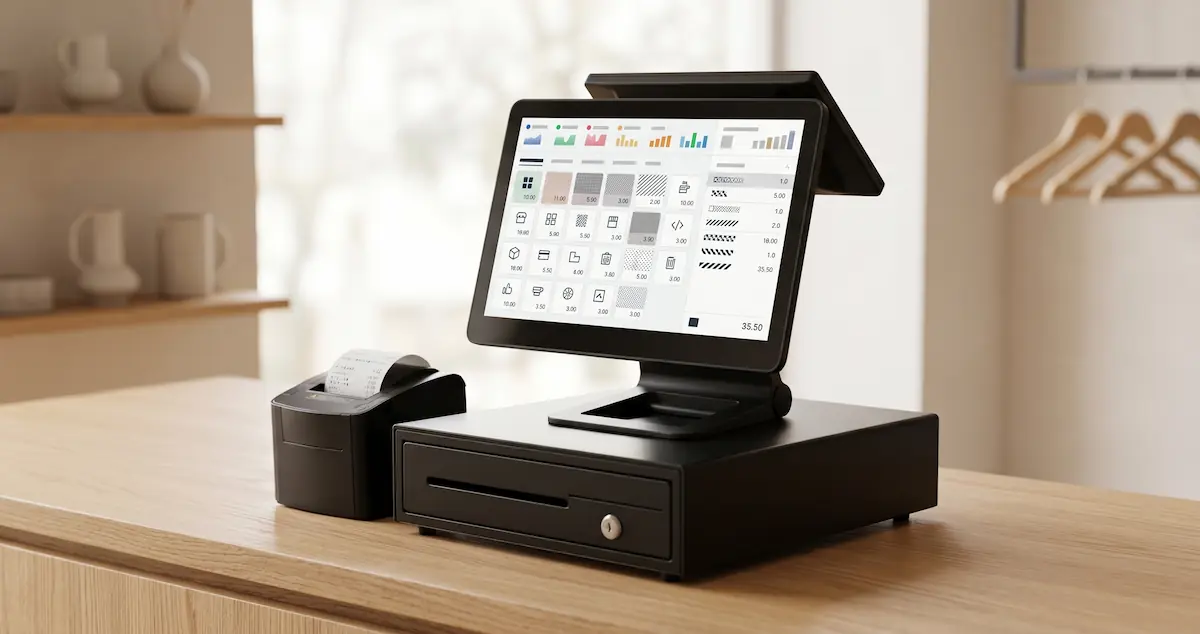
A POS system (Point of Sale) is a digital terminal that handles payment processing, receipt or invoice printing, inventory tracking, and sales reporting from a single platform. Modern POS systems combine a touchscreen, printer, barcode scanner, and cloud-based software into one connected device that replaces the traditional cash register.
Cash Register vs POS System: What's the Difference?
These terms are often used interchangeably, but they describe different generations of technology.
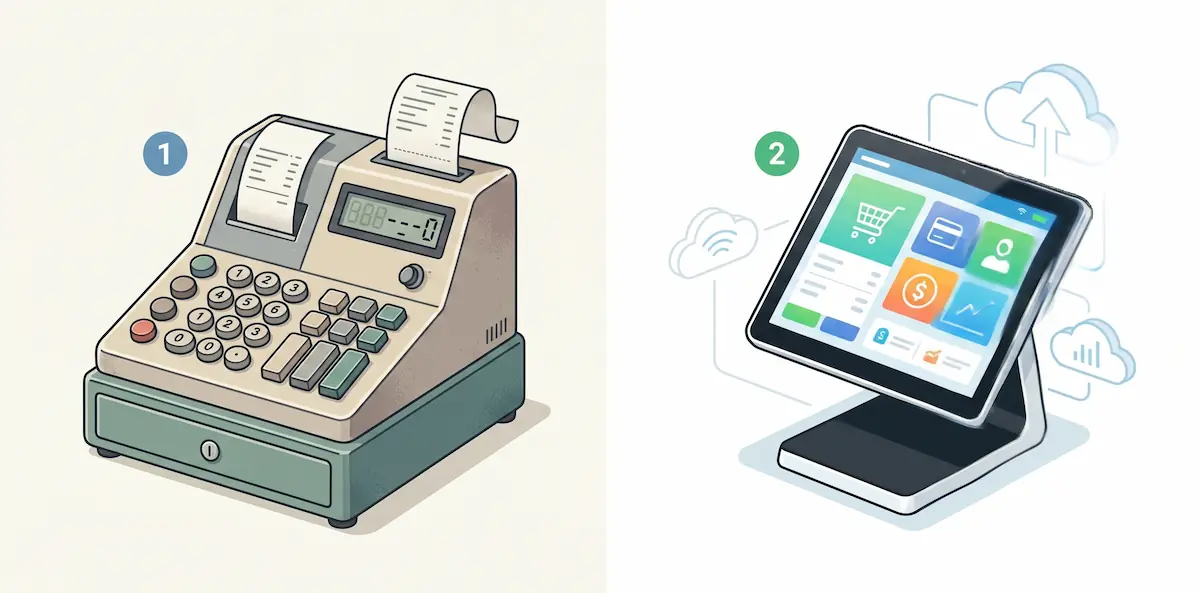
A cash register is the classic device that records sales and prints a paper receipt. It is usually button-based, requires manual price entry, and works as a standalone machine. Its job is narrow: take money, log the sale, print a slip.
A POS system is something larger. It manages the entire sales flow at the point of purchase: orders, inventory deductions, customer-facing displays, card payments, employee tracking, reporting, and integrations with accounting and e-commerce. The cash register is one component inside a POS system — not the system itself.
Today, when a small business owner asks "do I need a new cash register?" what they usually need is a modern POS system that includes register-style receipt printing as one of its features. For the rest of this guide, we use POS system to refer to this complete, connected setup.
How Does a POS System Work?
The flow behind a POS transaction is simple but powerful. A typical sale moves through five steps:
Item or order entry. The cashier scans a barcode, taps a product on the touchscreen, or — in restaurants — selects items from a menu screen.
Price and stock matching. The POS software pulls the price from its database, applies any active promotions, and decreases the stock count automatically.
Payment. The customer pays in cash, by card, or via contactless/mobile methods. With integrated POS systems, the card transaction runs through the same device.
Receipt or invoice. A printed receipt is produced, and where required, a digital invoice is generated and sent automatically.
Reporting. Every transaction is logged in real time and rolled into daily, weekly, or monthly reports.
All five steps complete in seconds. With a cloud-based POS, the same data appears on the owner's phone or at the head office at the same moment it happens at the till.
POS Hardware Components
A modern POS may look like a single device, but inside it is a small constellation of specialized components.
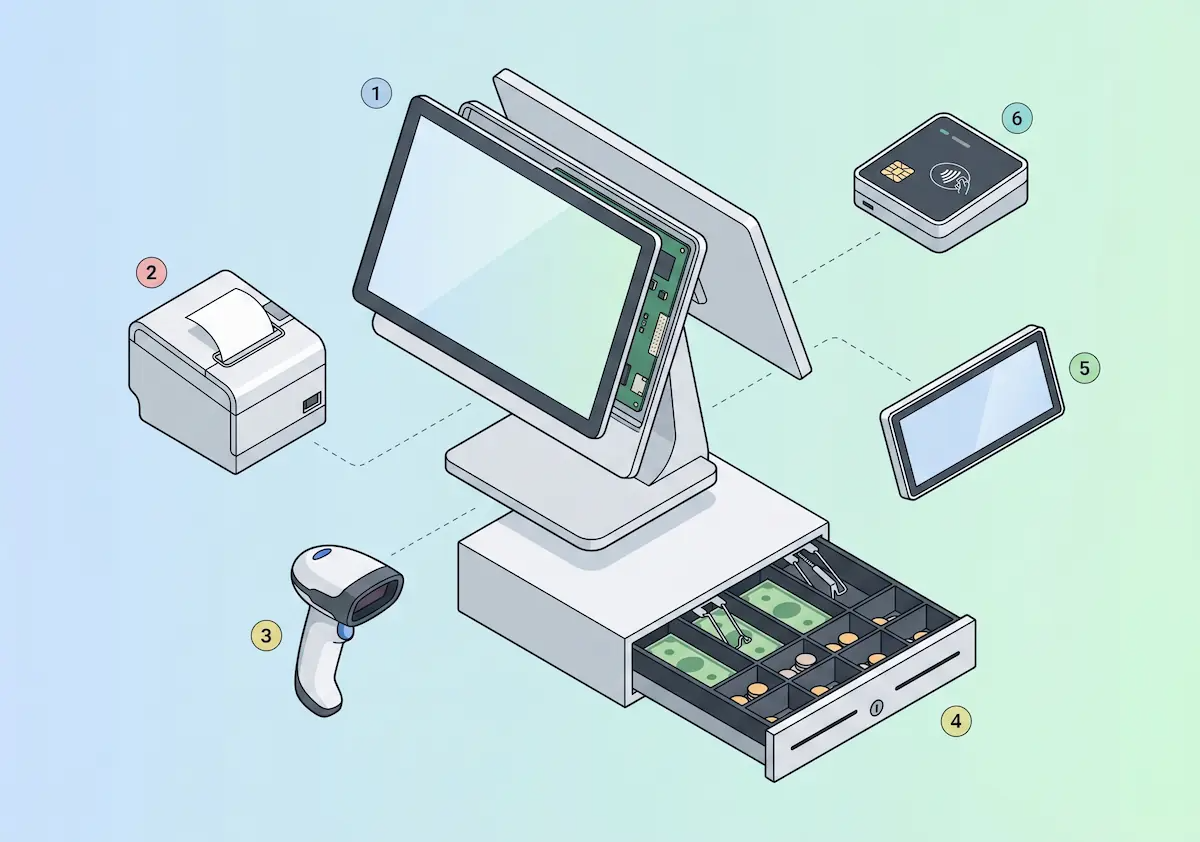
1. Touchscreen
The face of the POS. The cashier picks products, places orders, and confirms payment types here. Sizes typically range from 10 to 15 inches and use IP-rated screens that resist dust and splashes.
2. Thermal Printer
Prints receipts and order tickets without ink — onto heat-sensitive paper. The result is fast, quiet, and cheap to run, with no ribbons or cartridges to replace.
3. Barcode Scanner
Essential in retail and grocery. Laser models handle 1D barcodes; 2D imagers also read QR codes. High-end scanners can read dozens of codes per second, which makes a real difference at peak hours.
4. Cash Drawer
Connected to the printer, the drawer pops open automatically after a recorded sale. This small detail is actually a control: the drawer only opens after a logged transaction, which reduces the risk of off-the-books cash handling.
5. Customer-Facing Display
A second screen that lets the customer see exactly what they're being charged for. It builds trust and, in many markets, satisfies consumer protection regulations that require price transparency.
6. Payment Terminal (Card Reader)
In modern integrated systems, the card reader is built into the POS itself — no separate device to manage. It accepts contactless, chip-and-PIN, and increasingly QR-based payments through a single processor.
Software: The Layer That Makes a POS "Smart"
Hardware is just the shell. What separates a real POS from a glorified calculator is the software running on top.
A capable POS software platform handles:
Order management. Table-based ordering for restaurants, kitchen display routing, split bills, and modifiers.
Inventory tracking. Stock decreases automatically with each sale, low-stock alerts trigger reorder points, and a built-in stock-take mode keeps counts honest.
Reporting. Daily revenue, category sales, top products, employee performance, shift summaries — all generated automatically.
Multi-user roles and permissions. Each employee gets their own login and access level. You always know who sold what and who processed what refund.
Integrations. Accounting software, e-commerce platforms, online ordering apps, payment providers, and tax/invoicing services.
Cloud vs. local software. Local POS software stores data on the device — no internet required, but data loss risk is high and multi-location syncing becomes a nightmare. Cloud-based POS systems keep data on a central server: the owner sees reports from anywhere, locations stay in sync in real time, and backups happen automatically. For modern businesses, cloud is now the default standard.
Cash Register vs Modern POS: Side-by-Side
Putting a classic register next to a modern POS, the difference is more than just a bigger screen.
Classic Cash Register | Modern POS System | |
|---|---|---|
Interface | Physical keypad | Touchscreen |
Product entry | Manual price entry | Barcode / quick-select menu |
Inventory | None | Real-time, automatic |
Reporting | Simple end-of-day total | Full analytics dashboards |
Payments | Mostly cash | Cash, card, contactless, mobile — integrated |
Multi-user | Limited or none | Per-employee with role permissions |
Document types | Receipts only | Receipts, invoices, e-invoices |
Multi-location | Not supported | Real-time cloud sync |
Updates | Hardware replacement | Software updates |
Extensibility | Low | Modular, integration-friendly |
Payment Terminal vs POS System vs Complete POS Solution
Three concepts often get mixed up in conversations about "getting a new POS." Here's the clean separation:
Payment terminal (card reader): Provided by your bank or a payment processor. Its only job is to authorize and capture card transactions. It doesn't know about inventory, doesn't generate sales reports, and doesn't print itemized receipts.
POS register (sales endpoint): A device that records sales and prints receipts. Standalone POS registers used to be common; today they are usually replaced by software running on a tablet or dedicated terminal.
Complete POS solution (hardware + software): Wraps both above into one platform and adds order management, inventory, reporting, multi-location, and integrations. This is the brain of the entire sales operation.
Most systems sold today bundle all three: receipt printing, integrated card payments, and full POS software in a single contract.
Which Business Needs Which Type of POS?
POS choice changes significantly by industry. The same device and software won't be right for every sector.
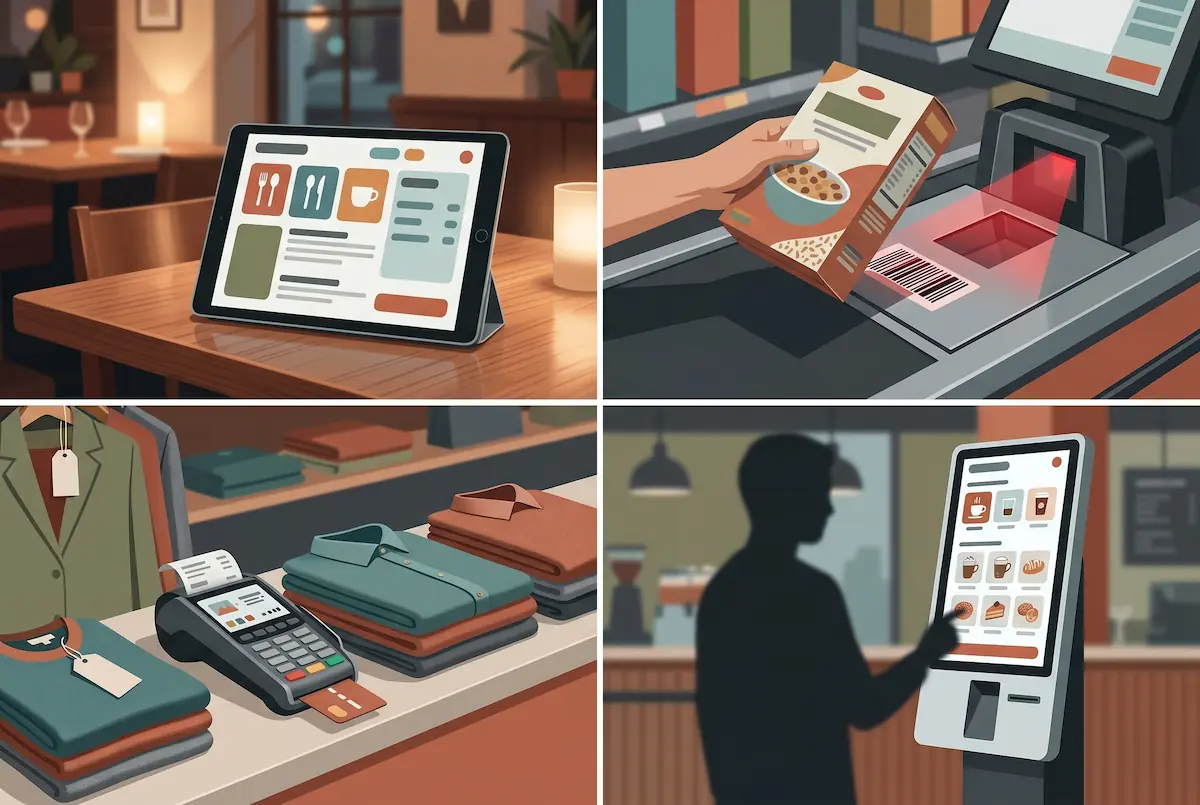
Restaurants and Cafes
Table layouts, order tickets, kitchen display systems (KDS), waiter tablets, and split-bill handling matter most. The POS must move orders from table to kitchen accurately and quickly — at peak hours, a one-second delay grows into a long ticket queue.
Supermarkets and Grocery
High-speed barcode scanning, multi-tier price labels, promotion rules, and weighing-scale support are top priorities. Real-time inventory is non-negotiable here because supplier reordering depends on it.
Retail and Boutique
Product variants (size/color), easy returns and exchanges, loyalty programs, and e-commerce integration stand out. Modern retail expects in-store and online sales to deduct from the same stock pool automatically.
Quick Service and Self-Order
Self-service kiosk modules, fast menu screens, and mobile order-taking dominate. Speed and queue management directly drive revenue here, so the POS needs to streamline ordering above everything else.
Benefits of Switching to a Modern POS System
Replacing an older register with a modern POS is not just "buying new equipment." It changes how the business actually runs.
Operational benefits:
Order and pricing errors drop sharply.
Inventory is always current; end-of-day surprises disappear.
Permissions are clear; you can trace any transaction back to the person who made it.
Transaction times shrink at peak hours, queues move faster.
Financial benefits:
You see which products are profitable and which are dragging margins down.
Per-shift and per-employee sales become measurable, making bonuses and performance reviews objective.
Reporting is automatic; your accountant gets clean data on day one of every month.
Compliance and integrations:
E-invoicing, accounting integration, and tax reporting run from one place.
Payment processor changes don't break your sales flow because the abstraction sits in the POS.
Audit trails are stored automatically and can be exported when needed.
What to Look For When Choosing a POS
The right POS isn't the cheapest or the newest — it's the one that fits your operation. Run through this checklist before you sign:
[ ] Industry fit. A restaurant POS struggles in a grocery store; a grocery POS falls short in hospitality.
[ ] Cloud-based. If you plan to open more than one location, this is non-negotiable.
[ ] Compliance ready. Does it support e-invoicing, tax reporting, and the integrations your jurisdiction requires?
[ ] Update model. Are software updates automatic and included, or do they trigger a separate invoice each time?
[ ] Hardware quality. Screen brightness, printer speed, and durability (IP rating) all matter day one.
[ ] Support and training. 24/7 support, onboarding, staff training included?
[ ] Total cost. Hardware price + software license + maintenance + integration fees = real monthly cost.
[ ] Data ownership. If you cancel, does your data come with you or stay locked in?
[ ] Hardware independence. Does the software only run on one vendor's terminal, or also on standard tablets/PCs?
A separate guide will cover concrete pricing tiers and model comparisons in detail.
Frequently Asked Questions
Do I really need a POS system instead of a regular cash register? For any business with more than a handful of products, yes. The moment you need inventory tracking, employee accountability, or sales reporting, a basic register stops being enough.
Is a payment terminal the same as a POS system? No. A payment terminal only authorizes card payments. A POS system manages the whole sale — including card payments, but also items, stock, receipts, and reports.
Can I use a tablet or phone as a POS? Yes. Modern POS software runs on tablets and smartphones. You'll often pair it with a thermal printer, a barcode scanner, and a card reader to complete the setup.
Does a cloud-based POS stop working when the internet goes down? A well-designed cloud POS continues to take sales offline and syncs them automatically when the connection returns. "Cloud" doesn't mean "useless without internet" if the product is built properly.
What happens to my old data when I switch to a new POS? Most modern POS providers offer product, customer, and stock data import. Ask for a migration plan in writing before you commit; this is also a good test of how mature the vendor is.
How often should a POS be replaced? Hardware typically lasts 5–7 years. With cloud software, even when the terminal is replaced, your configuration and data carry over — only the device changes.
Is a full POS overkill for a small café? Not really. A single tablet, a thermal printer, and an integrated card reader will cover a small operation, and you can grow modularly as the business expands.
Get Started with Kardo POS
Kardo is a cloud-based POS platform that combines register-grade receipts with a full modern POS in one package. Sector-specific modules for restaurants, cafes, supermarkets, and retail come ready out of the box, along with multi-location management and real-time reporting.
The platform is hardware-independent: run it on a certified terminal or on a tablet you already own. During onboarding, the support team handles product and stock import along with staff training, so the transition is measured in days rather than weeks.
To see the right configuration for your business, request a demo and we'll prepare a tailored setup based on your industry and number of locations.