POS System for Restaurants & Cafes: Order & Table Management
May 19, 2026
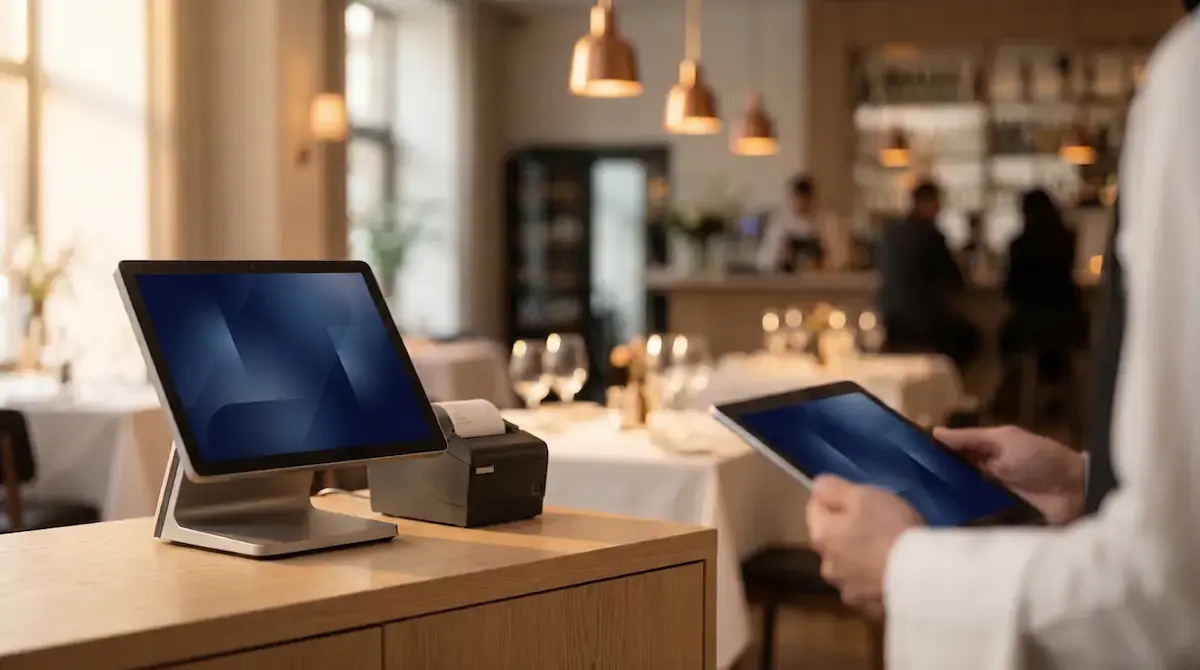
A restaurant and cafe POS system is the combined software and hardware that handles order entry, kitchen routing, table tracking, payment, and reporting for any business that serves customers at the table. Unlike a traditional cash register, it does far more than print receipts: it manages tabs, floor layouts, kitchen displays, and incoming online orders from a single platform.
What Is a Restaurant POS System, and How Is It Different from a Cash Register?
In a traditional setup, a cash register logs the sale and prints a receipt; the operational work happens around it. The server writes the order on paper, walks it to the kitchen, returns to the till at payment time, and prints the bill. Mistakes, lost slips, and unreadable handwriting are part of the daily friction.
A restaurant POS system reverses that flow. The order is entered at the table on a tablet or handheld terminal, appears instantly on the kitchen display, and is appended to that table's open tab. When the guest asks for the bill, the POS pulls the complete history in seconds, processes payment, closes the tab, deducts ingredients from stock, and updates reports.
The practical differences fall into three categories:
Data flow. A cash register records sales. A POS system manages orders, tables, inventory, staff, guests, and reporting at once.
Operational speed. With digital order entry the ticket reaches the kitchen in seconds; misreads, lost tickets, and "I told them, but it wasn't entered" mistakes disappear.
Business visibility. Cloud-based POS systems let the owner monitor table status, revenue, and best-selling items from their phone. For multi-location brands, this means seeing every branch from a central dashboard.
For anyone opening a restaurant or cafe today, the question is not "cash register or POS?" but "which POS, with which features?"
Order Tabs and Table Management
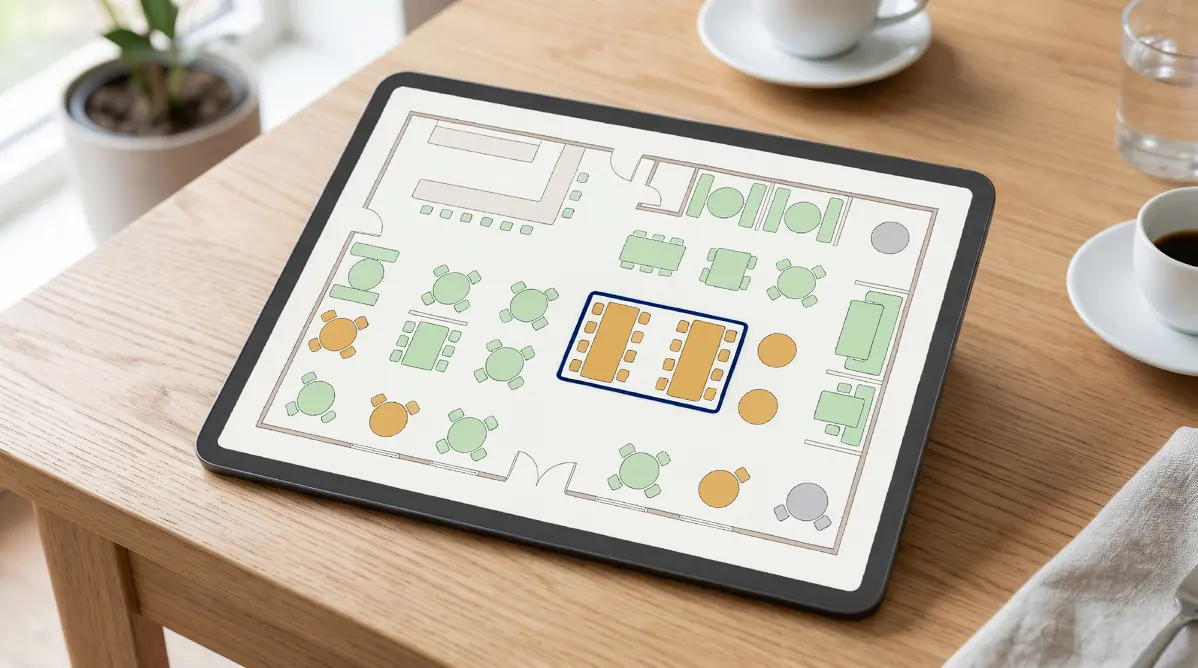
The heart of a restaurant POS is the order-tab and table-management module. A tab is a virtual check tied to a specific table, kept open until payment, with items added or removed throughout the meal. Table management is the visual representation of those tabs on a floor plan.
Floor Plan (Table Layout)
A good POS lets you reproduce your physical dining room one-to-one. Tables, bar seats, terrace, second room — each becomes a distinct zone. Every table on the plan reports its status by color:
Empty: soft color, available
Open tab: a warm color, with seating time and running total
Order in progress: distinct indicator if the kitchen hasn't finished yet
Bill requested: the color that tells servers which table to approach first
Paid, not yet cleared: signals when a table will free up
The floor plan is not a visual gimmick — it is an operational language. A manager who can read it in a glance handles a busy Saturday night with less staff and less stress.
Open Tabs, Merging and Splitting
Three situations are rare in restaurant operations but cause chaos every time they happen: a guest changing tables, two parties merging into a single bill, and guests at the same table asking to pay separately. A POS resolves all three in seconds.
Table transfer. Guests sit on the terrace, then move inside when the weather turns. The server drags the tab to the new table number; everything moves with it.
Table merge. Two couples become a group of six. The POS merges two tabs into one with a single tap.
Bill split. Four guests want to pay separately. The POS splits the tab by person, by item, or by arbitrary amount. Paid portions close; remaining portions stay open.
What turns into a paper-trail mess in a manual system becomes a few-second routine on a digital POS.
Server- and Staff-Level Order Tracking
Every order is tied to the user account of the staff member who entered it. This is more than basic accountability:
How many tables did each server handle tonight? How many orders, what average check size?
Which staff member sells more high-margin items — desserts, coffee, side orders? Useful data for identifying who actually upsells.
Tips can be tracked per server, per table.
Voids and discounts require manager approval; every void is logged with "who authorized, why."
For the owner, this is operational transparency. For the staff, it is objective performance data — a foundation for year-end bonuses based on numbers, not guesswork.
Kitchen Display System (KDS)
A KDS is a screen in the kitchen or bar that lists incoming orders by station. The cold kitchen sees only cold starters, the hot line sees mains, the bar sees drinks. Every ticket arrives with a timestamp; preparation time is counted automatically.
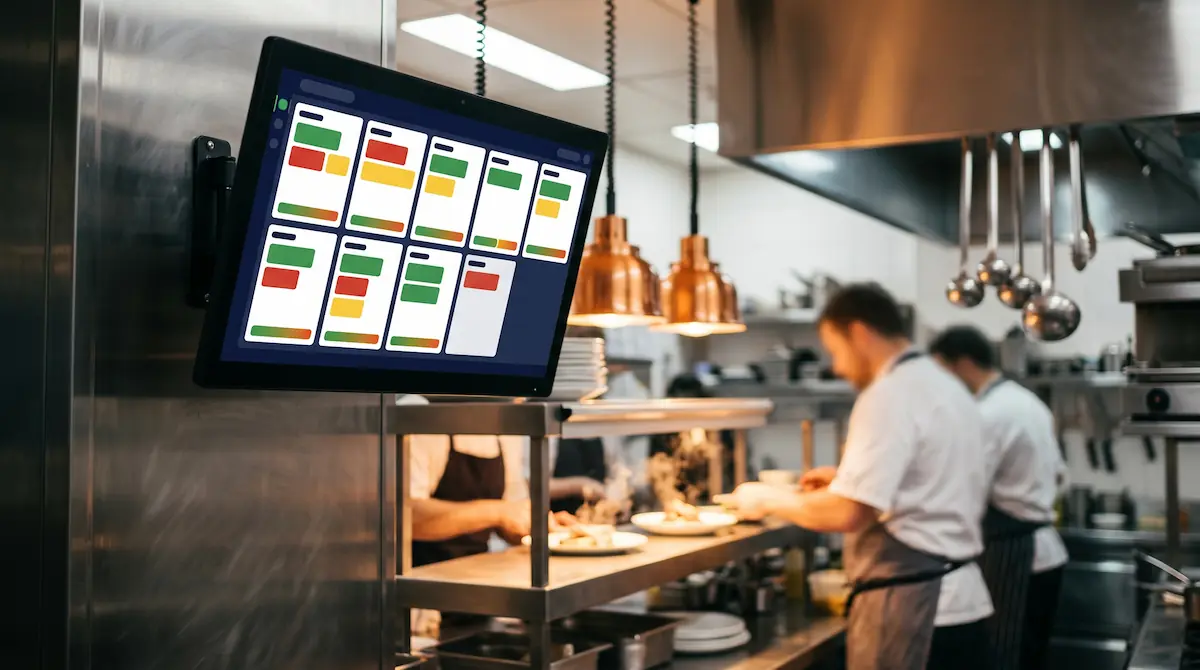
The advantages of a KDS over a kitchen printer are clear:
Sorting and prioritization. All items from the same table appear together; the chef plans the starter-main sequence at a glance.
Time tracking. Each ticket carries a "minutes since received" counter. Tickets over 10 minutes turn amber, over 20 minutes red. A slowing station is visible to the manager immediately.
No paper waste. A printer runs meters of paper per night — paper that gets wet, lost, or unreadable. KDS removes the problem.
Ready notifications. When a cook marks a dish ready, the server's handheld or the pass screen lights up. "Order is sitting under the heat lamp, nobody's coming" ends.
Performance data. Average prep time per dish, peak-hour pressure on each station — KDS produces this automatically.
Small cafes can run with a kitchen printer; restaurants above 20 tables with parallel stations should treat KDS as something close to mandatory.
Order Entry at the Table (Tablets and Handhelds)
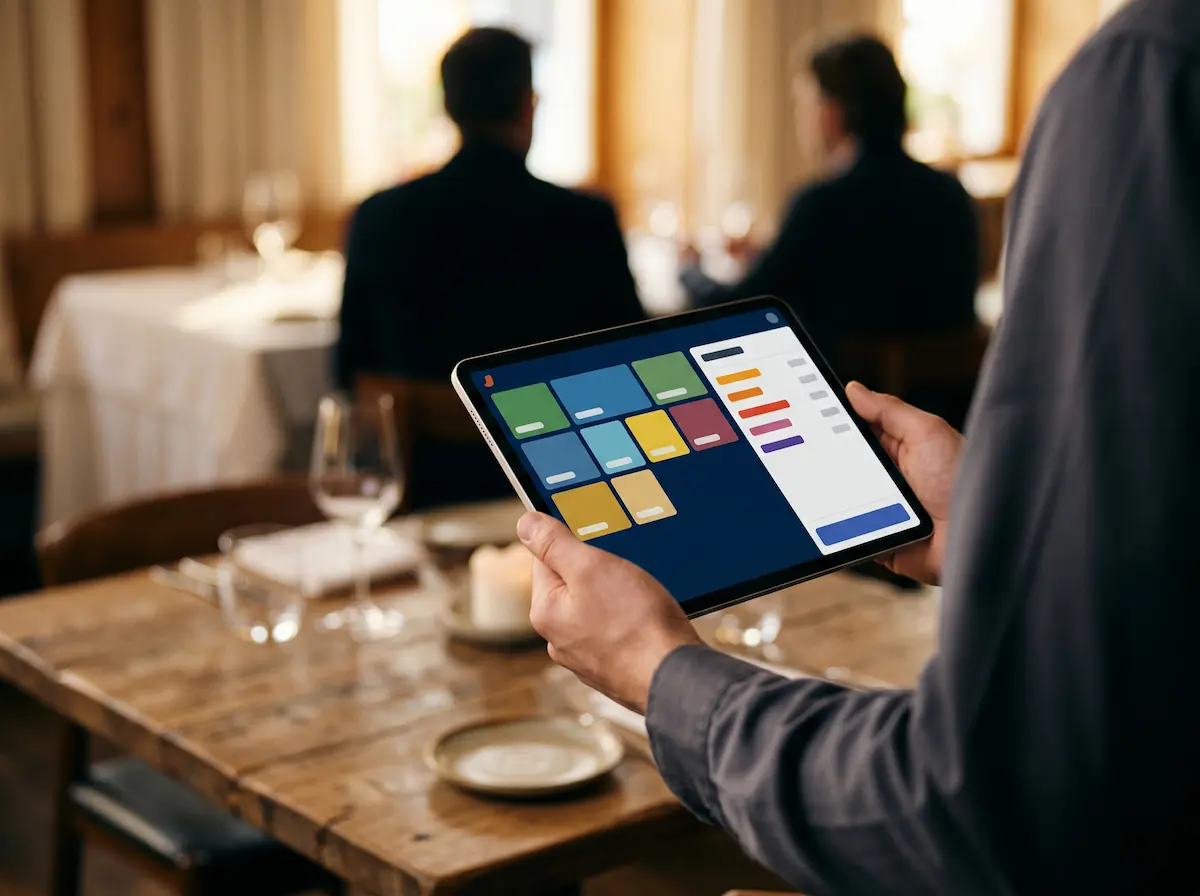
The most visible operational gain a restaurant POS provides is the server entering orders directly at the table, on a tablet or handheld terminal. The classic flow — walk to the table, write on paper, walk back to the till, enter the order, take the printed ticket to the kitchen — collapses into a single step.
Operational Impact
Fewer errors. Notes like "no spicy sauce," "medium rare," "sauce on the side" go from the screen to the KDS verbatim.
No walking back. The server doesn't need to return to a fixed terminal between tables; one tab closes, the next opens, all from the handheld.
Faster service. Because orders hit the kitchen immediately, average wait times typically drop 20–30%.
Payment at the table. With a mobile payment terminal, the guest never has to leave; the card transaction and receipt are handled tableside.
Tablet or Handheld?
Both run the same POS software; the difference is form factor.
Tablet (10–12 inch). Wide screen, easy menu browsing. Best for large orders with modifiers. Often mounted at the bar or pass station.
Handheld (5–6 inch). Pocket-sized, light, comfortable for an 8-hour shift. Ideal for fast service and simpler menus.
Most restaurants combine both: tablets at the bar and till, handhelds in every server's pocket on the floor.
QR Menu + POS Integration
A QR menu lets the guest scan a code at the table and view the digital menu on their phone. Integrated with the POS, it goes a step further: the guest can also place the order directly.
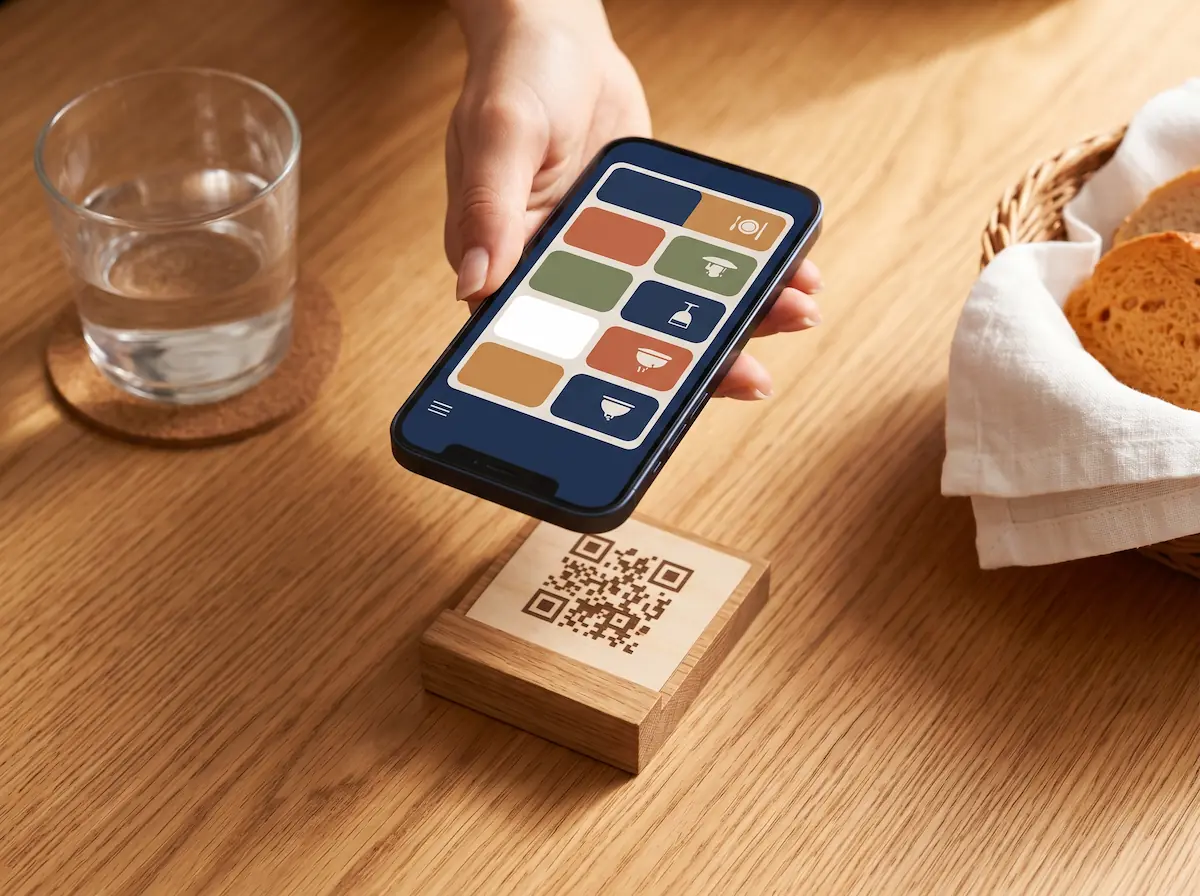
Three Levels of QR Menu Adoption
View only. The guest reads the menu and orders verbally. The simplest setup — a digital replacement for the paper menu.
Order with confirmation. The guest builds a cart and calls the server; the server confirms and the order drops into the POS.
Full self-service. The guest orders and pays from the phone. The standard model in coffee shops and fast-casual concepts.
Why POS Integration Matters
A standalone QR menu is essentially a digital brochure — it replaces the printed menu and nothing more. Integration is where the real value lies:
Single inventory source. An "out of stock" item is automatically hidden in the QR menu; the guest cannot place an order for it.
Single price source. Promotions, happy hours, seasonal menus — all are managed in one place and propagate to the QR menu instantly.
Single tab. Orders from the QR menu and orders entered by the server land on the same table tab; no fragmented bills.
Service signals. "Bill, please" or "more water" requests sent from the QR menu pop up on the assigned server's handheld.
QR menu plus POS pays off most during peak hours. In a 30-table restaurant on Saturday night, there are never enough servers; if every guest can read the menu and order their drinks as soon as they sit down, the server's first visit to the table moves to mains — and that minute saved scales fast.
Recipe-Based Inventory and Cost Control
The hardest line in restaurant accounting is true food cost. You know the dish sells for a given price, but do you know what it actually costs to plate? The recipe-based inventory module is exactly the tool that answers this.
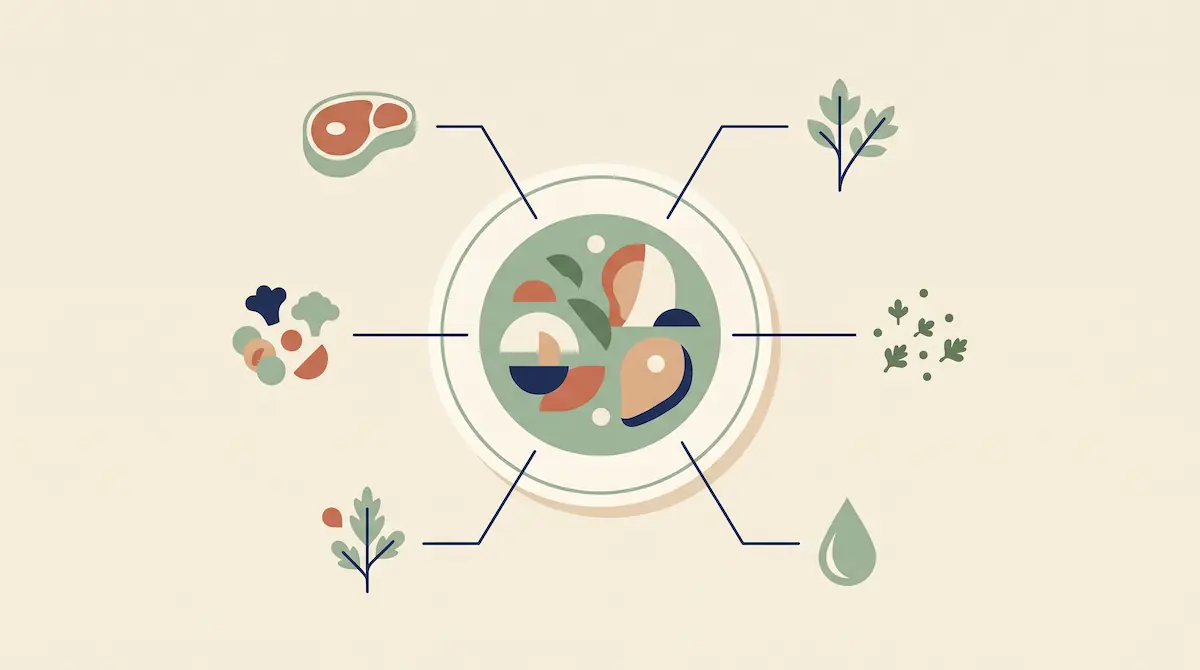
How a Recipe Is Defined
For each menu item in the POS, you define a recipe — the list of raw ingredients to be deducted from stock when that item is sold. A burger plate recipe might be:
180 g ground beef
1 burger bun
60 g salad mix
40 g sauce
10 g spice blend
When a guest orders the burger, the POS does not just log the sale. It deducts those five ingredients from current stock. At the end of service, the report shows not only "how many burgers sold" but also "how many kilos of beef used, how much remains in storage."
What You Do With the Data
True food cost. Each item's cost updates in real time with current purchase prices. If beef gets more expensive, the dishes whose margin is eroding become visible the same day.
Waste tracking. Items burned, comped to guests, or used for staff meals are logged separately. The "stock is short, where did it go" question becomes answerable.
Easier inventory counts. During weekly counts, the theoretical stock from the POS is compared against the actual stock in storage; discrepancies can be tracked to a location, an item, or even a staff member.
Margin reporting. Are your best-selling items also your most profitable? This is the basis of menu engineering, and it goes from guesswork to evidence with a POS.
The financial health of a restaurant or cafe depends heavily on this module being set up correctly. The software does everything; getting the recipes right on day one is a shared task between the chef and the operator.
Unified Order Management: Online Platforms + Dine-In
Since the pandemic, restaurant economics have shifted permanently: dine-in, takeaway, and online-platform orders all come from the same kitchen. Three different tablets, three different systems, three different ledgers means operational chaos. A modern POS pulls every channel onto a single screen.
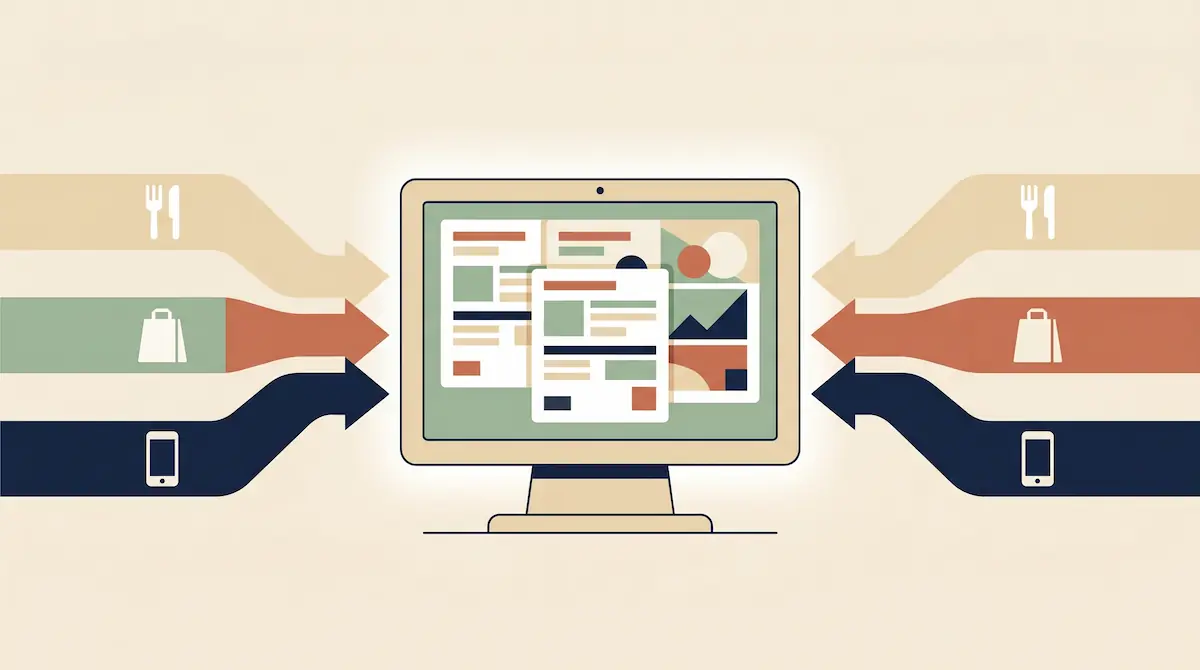
Three Benefits of Channel Unification
One kitchen queue. Dine-in orders and orders from Uber Eats, DoorDash, Deliveroo, or Just Eat all land on the same KDS. The chef answers "what do I work on next?" by arrival time, not by platform.
One inventory source. If an item runs out and you forget to mark it unavailable on a delivery app, you'll have to cancel orders — and every cancellation drops your rating on that platform. With stock synced from the POS, the problem disappears.
One end-of-day report. Instead of pulling three different platform exports at midnight, you get a single consolidated report.
What to Watch For
Platform integration must be end-to-end on the vendor side; "we copy orders into the POS by hand" workarounds are not sustainable. Order accept-reject, prep-time estimates, courier assignment — all should be possible from the POS. Otherwise you end up in a dual-system trap: "we have a POS, but we still need the delivery tablet for everything."
A Concrete Scenario: One Saturday at a 30-Table Restaurant
To show how these features actually work in service, let's follow a typical Saturday night at a 30-table restaurant hour by hour and see what the POS does at each step.
6:00 PM — Pre-service prep. The manager reviews the night's menu on the POS. The chef notes "the cod is out today," and the manager deactivates the dish with one tap. Cod disappears from the QR menu and every server's tablet instantly.
6:30 PM — First tables seated. Two reservations arrive. The host opens tabs on tables 7 and 14 from the floor plan. Servers pick up their handhelds.
7:15 PM — The rush builds. 18 of 30 tables are open. Three handhelds are pushing cocktail orders simultaneously; the bar KDS has a queue of 7 tickets, the oldest waiting 4 minutes — still green. The bar lead works through them in order.
7:40 PM — First catch. On table 12, the server entered "chicken schnitzel" but the guest meant "veal schnitzel." The ticket has been sitting 6 minutes, untouched. The server changes the item from the handheld; the old card vanishes from the KDS, the new card drops to the bottom. No waste — the kitchen hadn't started yet.
8:10 PM — Table merge. Two couples on tables 5 and 6 want to merge. The server taps "merge tables"; two tabs become one. The guests don't move; the new joint tab continues under a single table number.
8:45 PM — Kitchen slowing. On the KDS, tickets on the grill station are turning amber, three of them past 12 minutes. The manager walks in; the grill is short one cook and calls in backup. Without that visibility, the manager would have learned about the problem from server complaints — much later.
9:30 PM — First online order. A delivery order from Uber Eats lands on the KDS, color-coded as "takeaway." The chef queues it alongside dine-in tickets by arrival time.
10:00 PM — First closeouts. Table 7 asks for the bill. The server taps "bill" on the handheld, walks over, processes the card on the mobile terminal at the table. The guest never gets up; the receipt prints on the spot. The table flips to "paid, clearing" on the POS.
10:30 PM — Bill split. Table 14, four guests, asks to pay separately. The server hits "split tab" and divides the bill — equally, or by what each person ordered. Two pay cash, two pay card. Each portion closes as it is paid.
11:15 PM — Recipe alert. The POS recipe module flags "rib eye, 5 portions remaining." The chef notes it for the next ordering cycle.
12:30 AM — Close of service. Every table is closed. The manager pulls the end-of-day report with one tap:
Total revenue, broken down by tax category
Channel breakdown: dine-in, takeaway, delivery platforms
Revenue and tab count per server
Top five selling items
Average KDS prep time by station
Stock movements and low-level alerts
With a cash register half this report wouldn't exist; the other half would take until 3 AM to assemble manually. With a POS, the report is generated in twelve seconds and the manager reads it from a phone on the way home.
How to Choose a Restaurant / Cafe POS
POS solutions differ less by feature list and more by architecture and target segment. When choosing, evaluate these axes:
Cloud-Based vs On-Premise
Criterion | Cloud-Based POS | On-Premise POS |
|---|---|---|
Data location | Vendor servers, internet access | Local device, runs without internet |
Multi-location | Single dashboard for all branches | Separate system per branch, manual sync |
Updates | Automatic, by vendor | Manual, often needs technician |
Internet outage | Offline mode, syncs when reconnected | Unaffected |
Remote visibility | Owner sees everything from a phone | Often limited |
Upfront cost | Low (subscription) | High (license + hardware) |
Long-term cost | Ongoing monthly fee | One-off, but updates extra |
New restaurants and multi-location brands typically choose cloud-based; long-established single-location businesses in areas with unreliable connectivity still find on-premise value.
Tablet POS vs Fixed Terminal
A tablet POS is light, portable, and uses a modern UI. The server takes orders at the table; the manager runs reports from the tablet. A fixed terminal is mounted at the till, with integrated keyboard, customer display, cash drawer, and printer.
Most modern restaurants combine both: a fixed terminal at the bar or main till, plus mobile tablets or handhelds for every server on the floor.
Hardware Compatibility
Which hardware does your POS software actually support? Check:
KDS / kitchen printer support — how many concurrent screens?
Mobile payment terminal — integrated, or a separate card device?
Peripherals (barcode scanner, drawer, customer display) — open standard, or vendor-locked?
Backup scenario — if one tablet fails, can the other devices keep service running?
Scalability
You have one location today; in three years you may have three. Will the same system grow with you? This is the strength of cloud-based POS: a new branch is essentially new hardware — the software already knows the menu, the prices, and the reporting structure.
Frequently Asked Questions
How much does a restaurant POS system cost?
The cost varies based on the number of devices, the subscription model, and the features you need. In general, plan for a monthly software fee per user plus a one-off hardware investment. A small cafe can run on a single tablet, a printer, and a kitchen printer; a busy multi-room restaurant will need tablets, KDS, handhelds, and integrations — a more substantial setup. For a real number, request a tailored quote from vendors based on your specific concept.
Is a Kitchen Display System mandatory?
It is not mandatory, but above a certain size it dramatically improves efficiency. Up to 10–15 tables, a kitchen printer is usually enough. Beyond 20 tables, with parallel stations (cold, hot, bar), a KDS provides ticket prioritization and timing visibility that paper simply cannot match.
Is a cloud-based POS safe, and what happens if the internet drops?
Modern cloud-based POS systems include an offline mode: when the connection drops, the device keeps recording orders and payments locally and syncs to the cloud automatically when reconnected. On data security, most solutions use SSL encryption and regular backups. The only practical requirement is reliable internet — pairing fiber with a 4G/5G failover is a sound setup for a restaurant.
Does a small cafe really need a POS, or is a cash register enough?
A simple cash register meets the basic legal requirement in most regions. The real contribution of a POS is operational: inventory tracking, sales reporting, promotion management, loyalty programs, online order integration, multi-staff support, and QR menus all help even a small cafe run more smoothly. The monthly software cost is usually recovered many times over in efficiency.
What about keeping a physical menu instead of a QR menu?
You can — and many restaurants do both. The physical menu stays as an atmospheric piece; the QR menu handles current prices, out-of-stock items, and order integration. The real question isn't physical versus digital; it's whether you have a single, POS-integrated menu source. A single source stays consistent across every channel.
How long does POS setup take, and how much training is needed?
For a single-location, mid-sized restaurant, a typical install — hardware included — runs 1–3 days. Defining recipes and entering the menu is the longest step and should be done with the chef. Staff training today is usually half a day to a day; modern POS interfaces are as familiar as a smartphone. Having close vendor support during the first week matters; every new system has an adjustment week of "what happens if I tap this?"
Conclusion
Running a restaurant or cafe is no longer just about good food and good service. It's about seeing accurate data in real time and making fast decisions. A properly configured POS system speaks one language across tabs, tables, kitchen, online orders, and reporting. Staff stop making order errors; the kitchen sees pressure points before they explode; the owner reads the day from a phone at a glance.
At Kardo POS we build this integrated stack — cloud-based POS, KDS, mobile ordering, QR menus, recipe-based inventory, and delivery-platform integration in one system. To talk through a setup that fits your concept, get in touch and we'll walk through it together, from floor plan to menu.